How to run the tutorials
There are two ways to run the tutorials. Google Colab runs them in your web browser with nothing to install, and is the quickest way to start. Your own computer takes about fifteen minutes to set up once, and keeps everything you download.
Either way, you only ever edit one cell per notebook, Your settings. You never need to read or change the code.
- Option 1: Google Colab, nothing to install
- Option 2: your own computer
- Running a notebook
- Getting a free NCBI API key
- Without notebooks: the command line
If something goes wrong, see troubleshooting.
Option 1: Google Colab, nothing to install
You need a Google account.
- Open the tutorials list and click the Open in Colab button at the top of a tutorial. Start with tutorial 0.
- Sign in to Google if asked.
- Choose Runtime > Run all.
- Colab warns that this notebook was not authored by Google. Choose Run anyway: the notebook comes from the pubmed-stream repository on GitHub.
- Results appear under each cell, in about five minutes.
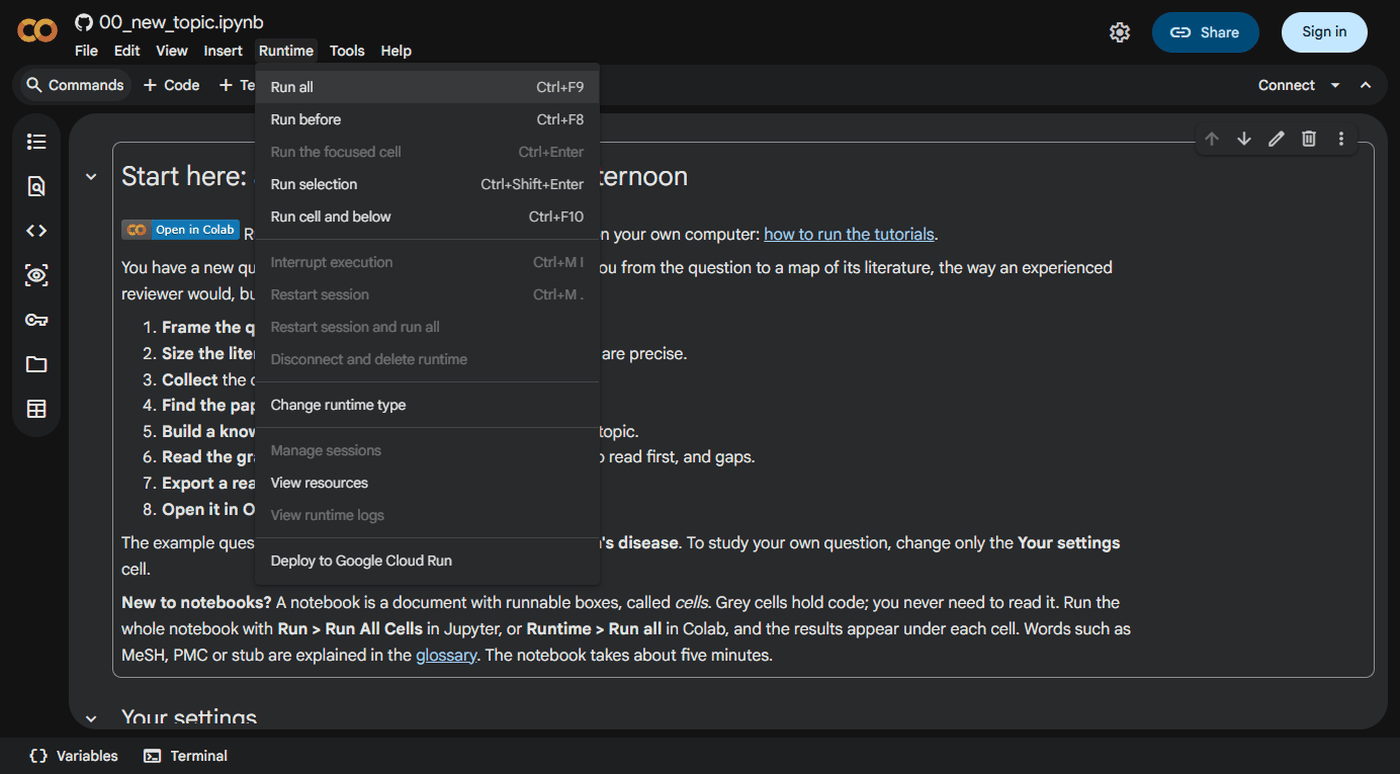
To use your own question, edit the Your settings cell and choose Runtime > Run all again.
Colab forgets everything when you close the tab or leave it idle for a while. The tutorials that build a knowledge graph end with a cell that saves it to your computer as a zip file. Save anything else you want to keep with File > Download, or copy it to Google Drive.
Option 2: your own computer
1. Install Python
Download Python from python.org/downloads and run the installer. Any recent version works; the tutorials need Python 3.9 or later.
- Windows: on the installer's first screen, tick Add python.exe to PATH before clicking Install Now. Without it, the commands below are not found.
- Mac: run the installer with its default choices.
2. Open a terminal
A terminal is a window where you type commands.
- Windows: open the Start menu, type
Terminal(orCommand Prompton older Windows), and press Enter. - Mac: press Cmd+Space, type
Terminal, and press Enter.
Check that Python works by typing this and pressing Enter:
It prints a version such as Python 3.12.4. On a Mac, type python3 instead of python here and in every command below.
3. Download the tutorials
On the pubmed-stream GitHub page, click the green Code button, then Download ZIP. Unzip it somewhere easy to find, such as your Documents folder. The unzipped folder is called pubmed-stream-main.
If you use git, git clone https://github.com/melhzy/pubmed-stream.git does the same.
4. Install pubmed-stream and the tutorial tools
In the terminal, move into the unzipped folder. Type cd, a space, then drag the folder from your file explorer onto the terminal window, which fills in its location, and press Enter:
Then install pubmed-stream with the tools the tutorials use (Jupyter, pandas, matplotlib and networkx):
This takes a minute or two and prints many lines; the last one starts with Successfully installed. A notice that a new release of pip is available is harmless and can be ignored.
5. Start Jupyter
Still in the same folder, type:
Your web browser opens Jupyter, showing the folder's files. Click tutorials, then 00_new_topic.ipynb.
Leave the terminal window open while you work; closing it stops Jupyter. Next time, open a terminal, cd into the folder again and run python -m notebook. Steps 1, 3 and 4 are needed only once.
Everything the tutorials download or build goes into tutorials/workspace/. Delete that folder to start fresh.
Running a notebook
A notebook is a document made of cells. Text cells explain; code cells, shown in grey, do the work and show their results underneath. Near the top of every tutorial is the Your settings cell, the only one you edit:
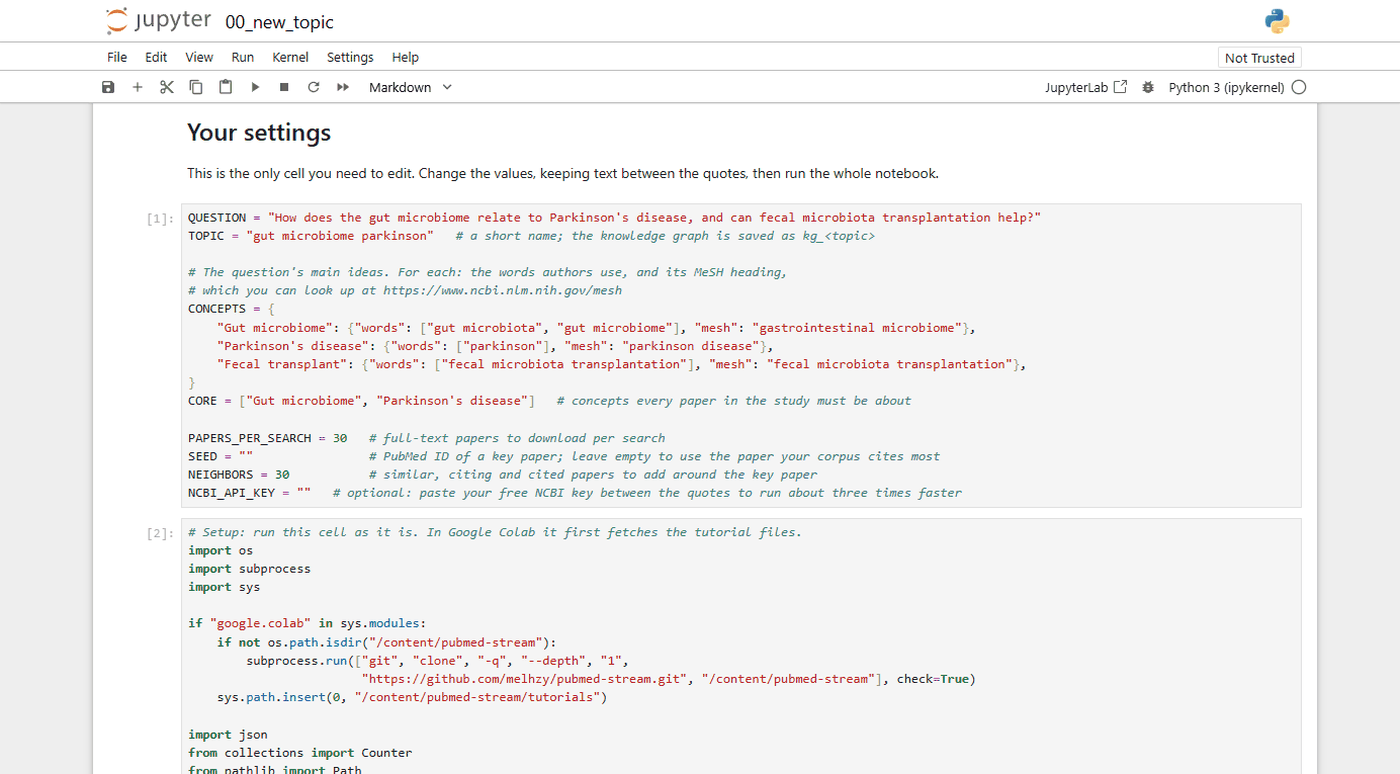
Then run the whole notebook from the Run menu:
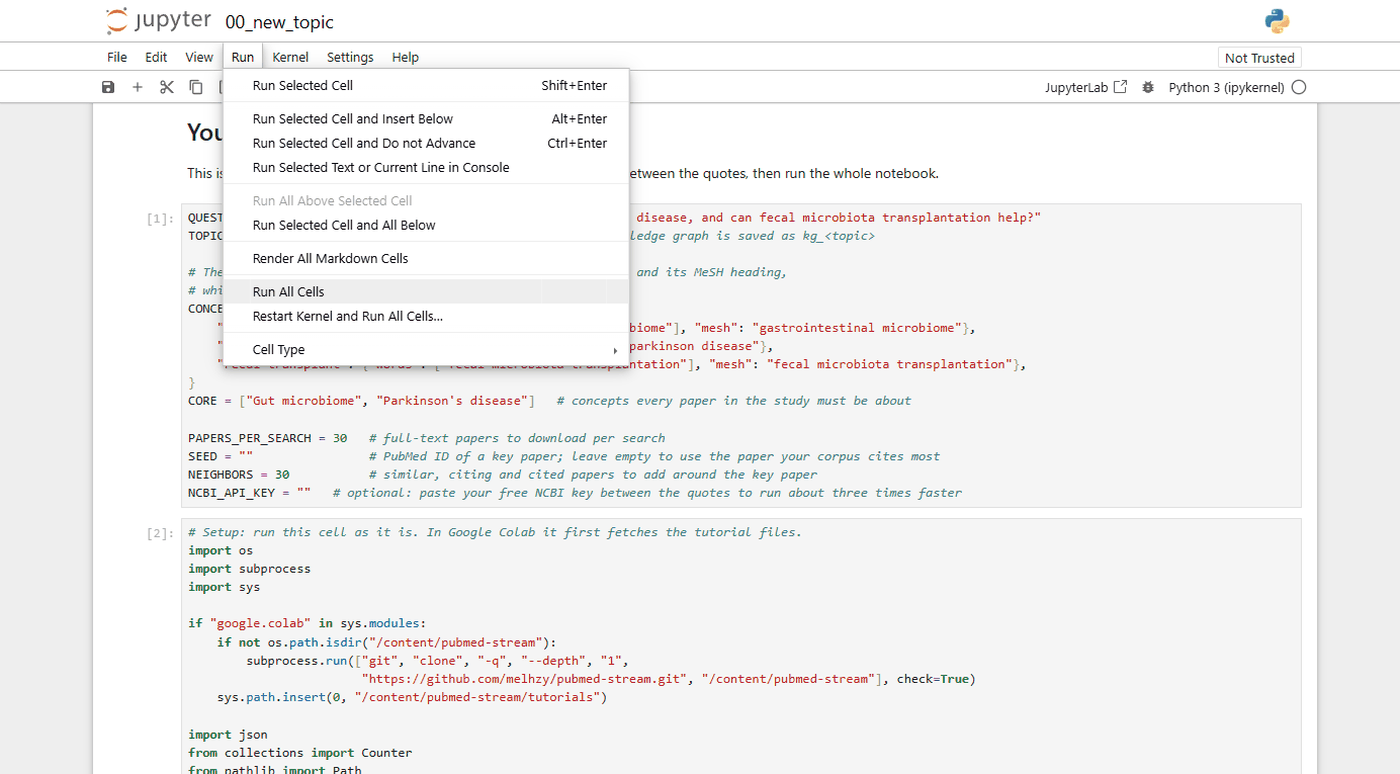
Jupyter labels a notebook you have not run yet as Not Trusted, at the top right. That is normal for a downloaded notebook: it only means the saved results were not produced on your computer, and the notebook runs as usual.
| To | In Jupyter | In Colab |
|---|---|---|
| Run the whole notebook | Run > Run All Cells | Runtime > Run all |
| Run one cell | Click it, then Shift+Enter | Click it, then Shift+Enter |
| Start over after changing settings | Kernel > Restart Kernel and Run All Cells | Runtime > Restart session and run all |
| Stop a cell that takes too long | Kernel > Interrupt Kernel | Runtime > Interrupt execution |
While a cell runs, Jupyter shows [*] beside it, and Colab a spinning circle. When it finishes, a number appears.
Getting a free NCBI API key
NCBI, which runs PubMed, allows 3 requests per second without a key and 10 with one, so a key makes everything about three times faster. It is free:
- Sign in, or create an account, at account.ncbi.nlm.nih.gov. You can sign in with Google or your institution's login.
- Click your name at the top right, then Account settings.
- Under API Key Management, click Create an API Key, and copy the key.
- Paste it between the quotes of
NCBI_API_KEY = ""in a notebook's Your settings cell.
The key is personal. Clear it from the settings cell before you share a notebook with others.
To use the key from the command line and with AI assistants too, save it once: pubmed-stream init --ncbi-api-key YOUR-KEY, run in your research folder, keeps it in a settings file in your home folder, and pubmed-stream init asks for it while none is saved. An environment variable named NCBI_API_KEY works as well, and takes precedence.
Without notebooks: the command line
Once pubmed-stream is installed, every step also works as a single terminal command, with no notebook. For example, this builds a knowledge graph for a new topic in a folder called kg_gut_microbiome_parkinson:
pubmed-stream kg "gut microbiome parkinson" -q "parkinson[Title] AND microbiota[Title]" --seed 27912057
Run pubmed-stream --help, or see the main README, for every command. An AI assistant such as Claude Code or Codex can also run them for you, through pubmed-stream's MCP server: install the pubmed-stream plugin once, or run pubmed-stream init in a research folder, as tutorial 7 explains.