Reading a knowledge graph in Obsidian
pubmed-stream builds a knowledge graph as a folder of linked notes, kg_<topic>. Obsidian is a free note-taking app that turns such a folder into a browsable, searchable map of your study, where you can also write your own notes. This guide shows how to open the graph, find your way around it, and make it your own. The screenshots show the graph that tutorial 0 builds, on the gut microbiome in Parkinson's disease.
- Install Obsidian and open the graph
- The home note
- Paper, concept and collection notes
- The graph view
- One paper's neighborhood: the local graph
- A table of all papers
- Search
- Write your own notes
- Keep the graph current
- Reviews by a local model
- From the command line and AI assistants
Install Obsidian and open the graph
- Download Obsidian from obsidian.md for Windows, Mac or Linux, and install it. It is free, and your notes stay on your computer.
- Find the graph's folder. The tutorials print where it is, such as
tutorials/workspace/kg_gut_microbiome_frailty. In Google Colab, the last cell saves it as a zip file: unzip it first. - Start Obsidian and choose Open folder as vault. On later visits, choose Open another vault from the vault menu at the bottom left.
- Select the
kg_<topic>folder itself, the one that holdsPubMed Stream.mdand thepapers,conceptsandcollectionsfolders, and click Open.
Obsidian calls a folder of notes a vault. Your knowledge graph is now one. From now on, pubmed-stream open kg_<topic> opens it from the terminal, and pubmed-stream kg ... --open opens it right after a build.
The home note
Open PubMed Stream in the file list on the left. It is the graph's front page: how many papers and concepts it holds, a link to each collection, and the most connected concepts. Click any link to follow it.
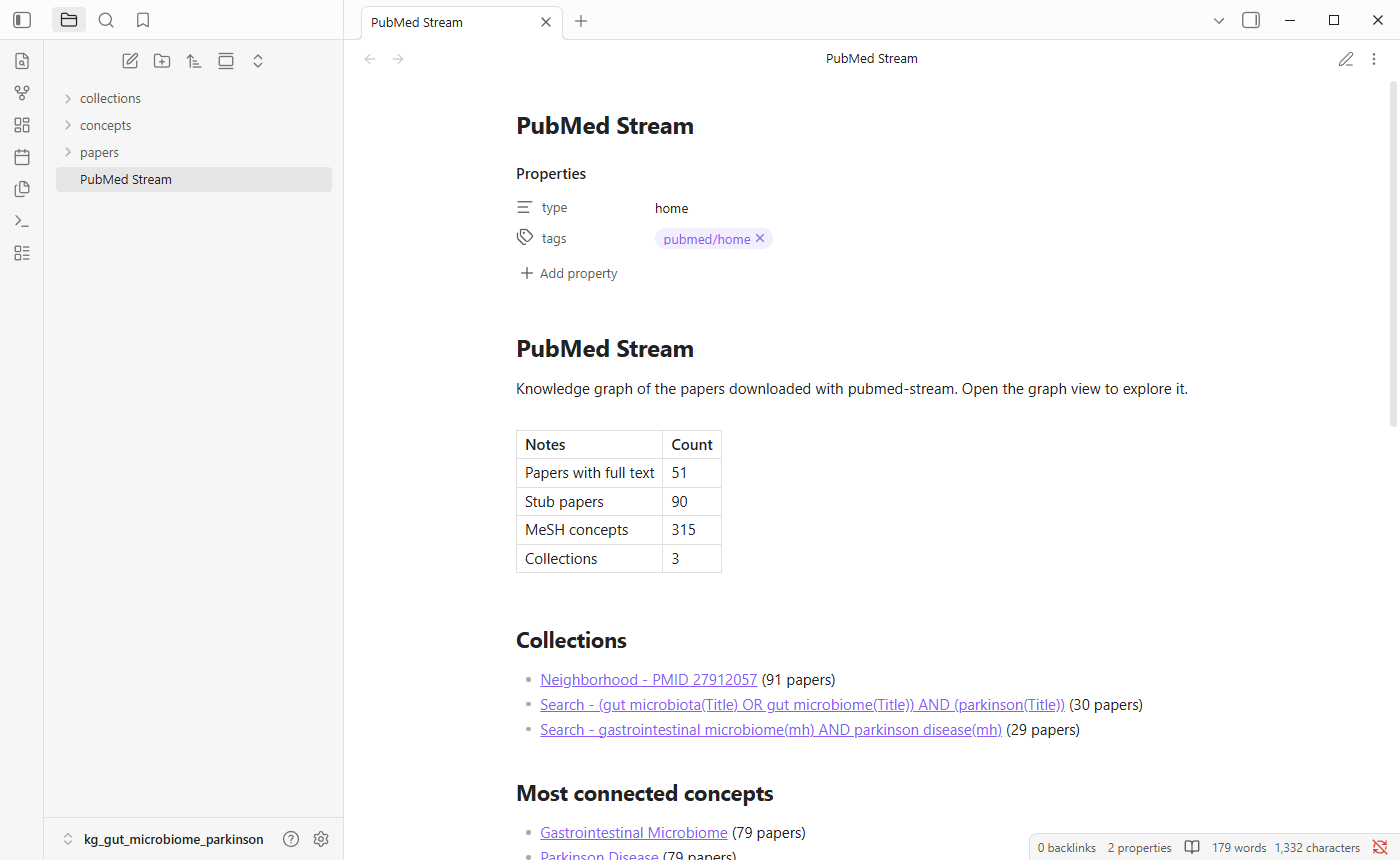
Links work like a web page: click to open, and Ctrl+click (Cmd+click on a Mac) to open in a new tab. The arrows at the top left go back and forward.
Paper, concept and collection notes
The graph has three kinds of notes, in three folders.
Papers (papers/PMID<number>) have one note each. At the top, properties list the paper's details: title, PubMed ID, DOI, year, journal, authors, publication types and MeSH headings. Below them:
- Authors, journal and links to PubMed, PMC and the publisher.
- Abstract and the authors' keywords, for downloaded papers. The full text itself stays in the downloaded JSON files, which the other tutorials analyse.
- MeSH concepts, each a link to its concept note, marked (major topic) when it is a main point of the paper.
- Cites, Cited by and Similar articles: links to other papers in the graph.
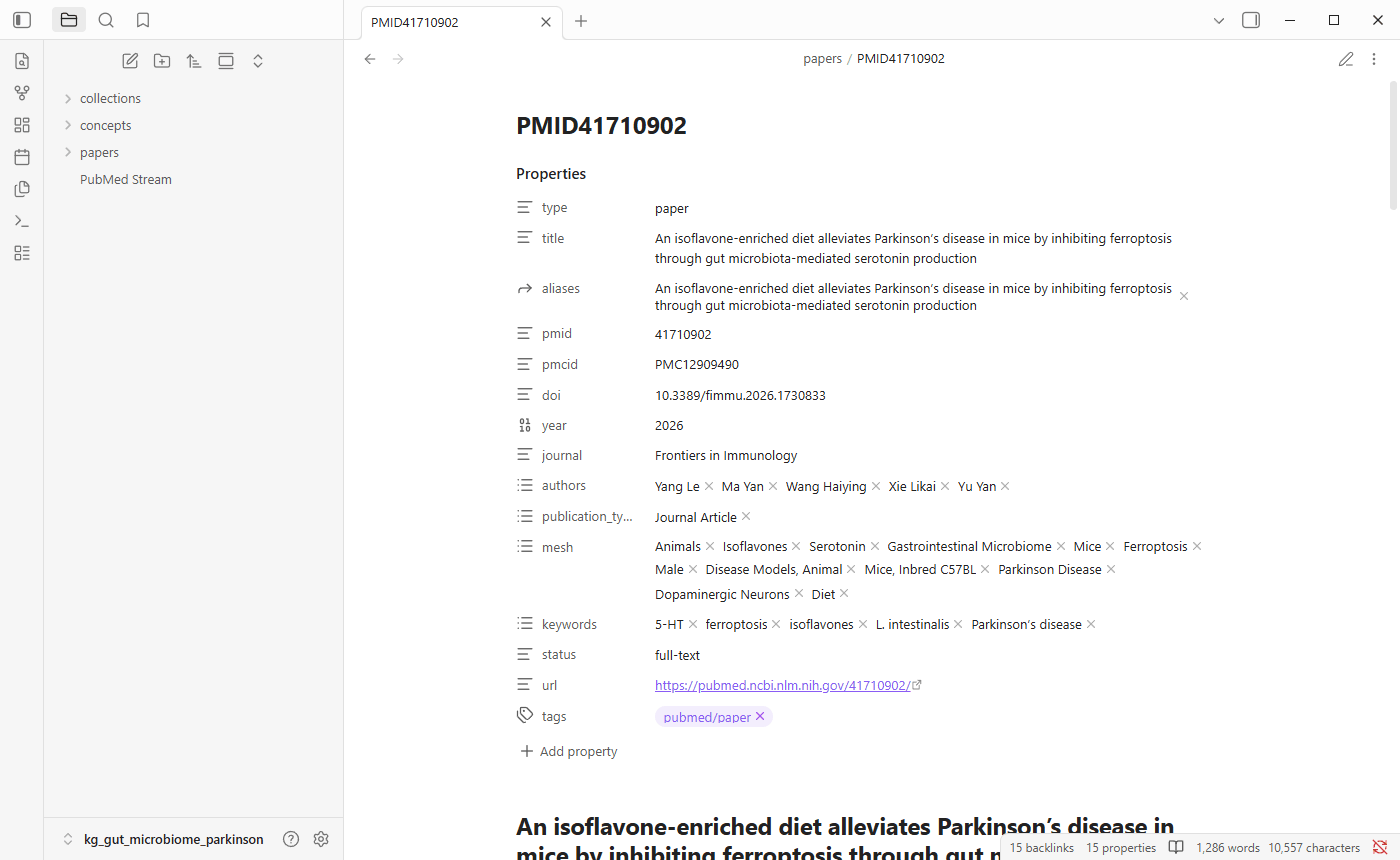
Further down, the links connect the paper to the rest of the graph. Links in full colour lead to notes; the paler ones are explained below.
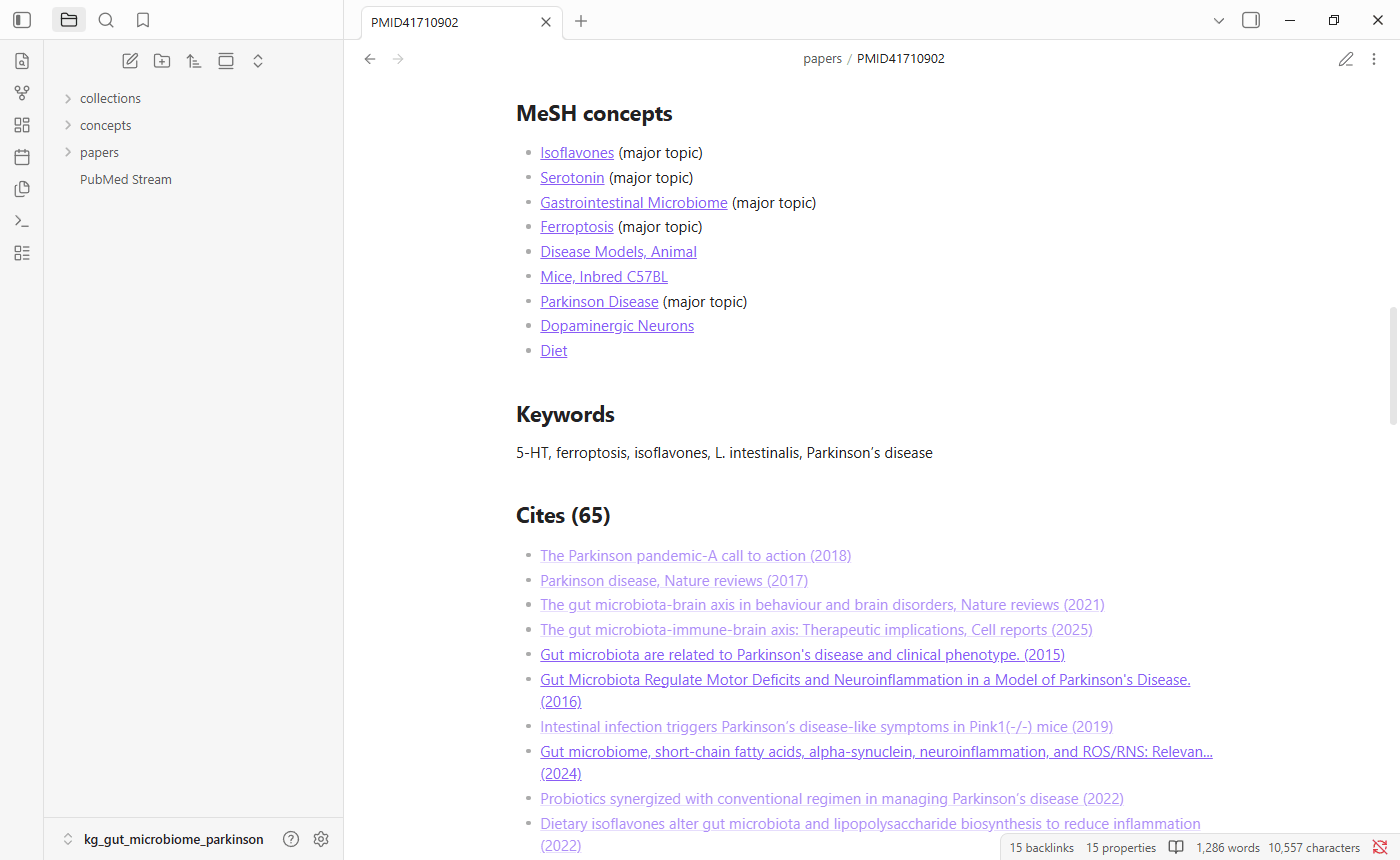
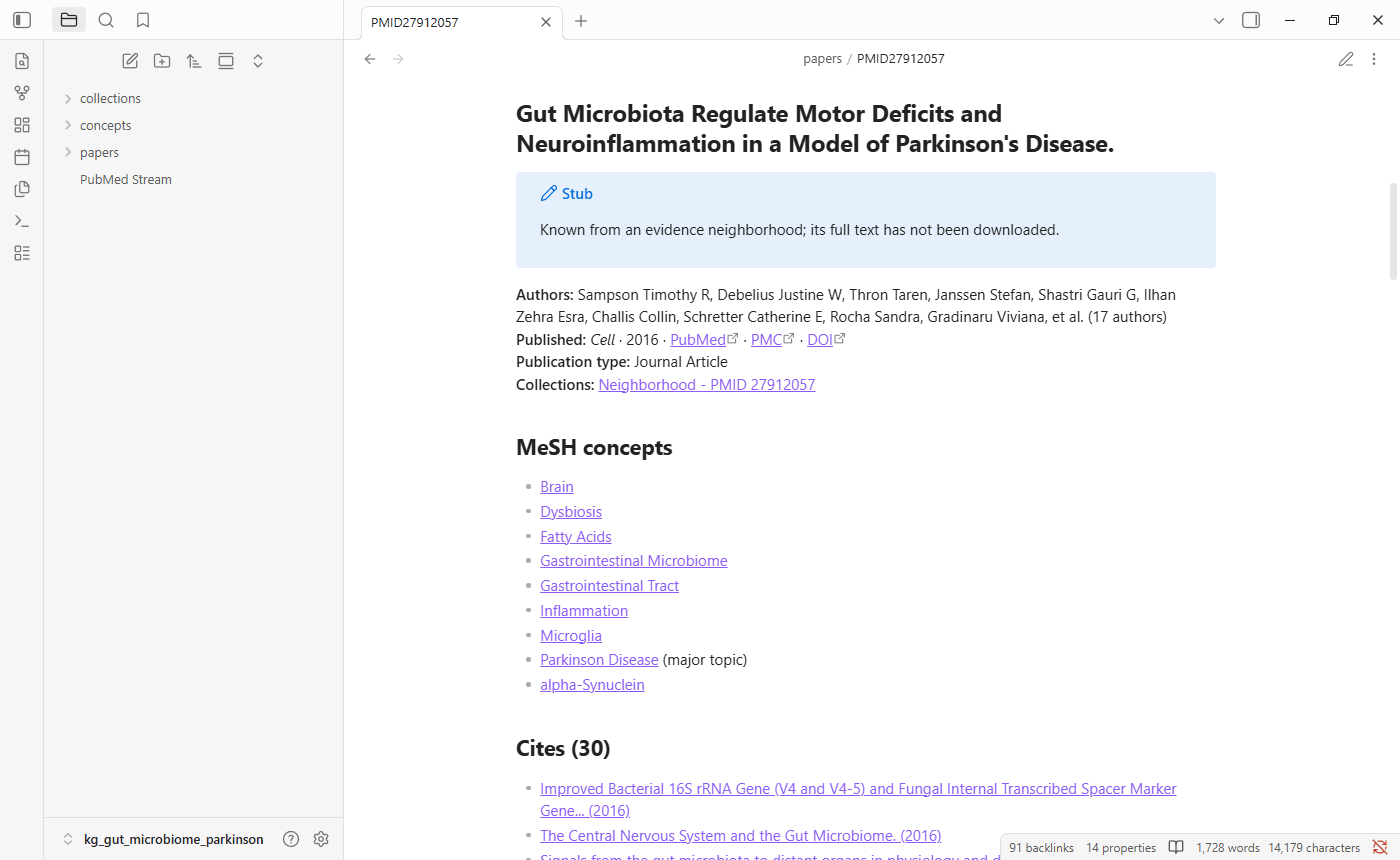
A note that starts with a Stub box is a paper from a key paper's evidence neighborhood that was not downloaded. It has PubMed's details and links, but no abstract or full text.
A cited paper that is neither downloaded nor in a neighborhood has no note. Its link is a placeholder: Obsidian shows it in a paler colour, and clicking it creates an empty note. Its PubMed ID is in the link, so you can look it up.
Concepts (concepts/) have one note per MeSH heading, listing every paper indexed with it. Open one to see every paper in your study about that concept, with the ones where it is a major topic marked.
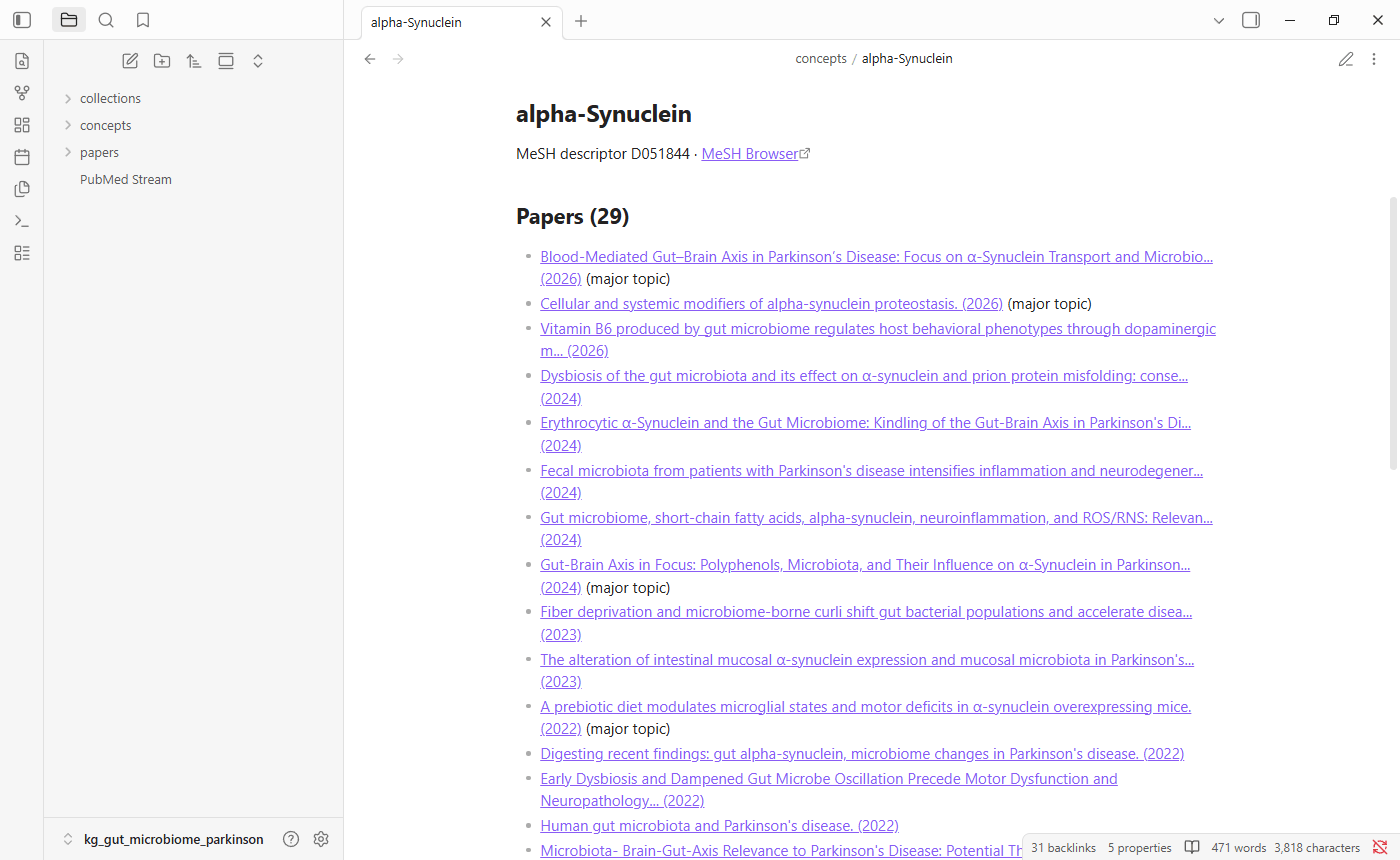
Collections (collections/) have one note per search or evidence neighborhood, listing the papers it brought in and its top concepts.
The graph view
Open it with the graph icon in the left toolbar, or with Ctrl+G (Cmd+G on a Mac). Every note is a dot and every link a line. Hover over a dot to highlight its links and see its name; click it to open the note. Scroll to zoom, and drag the background to move around.
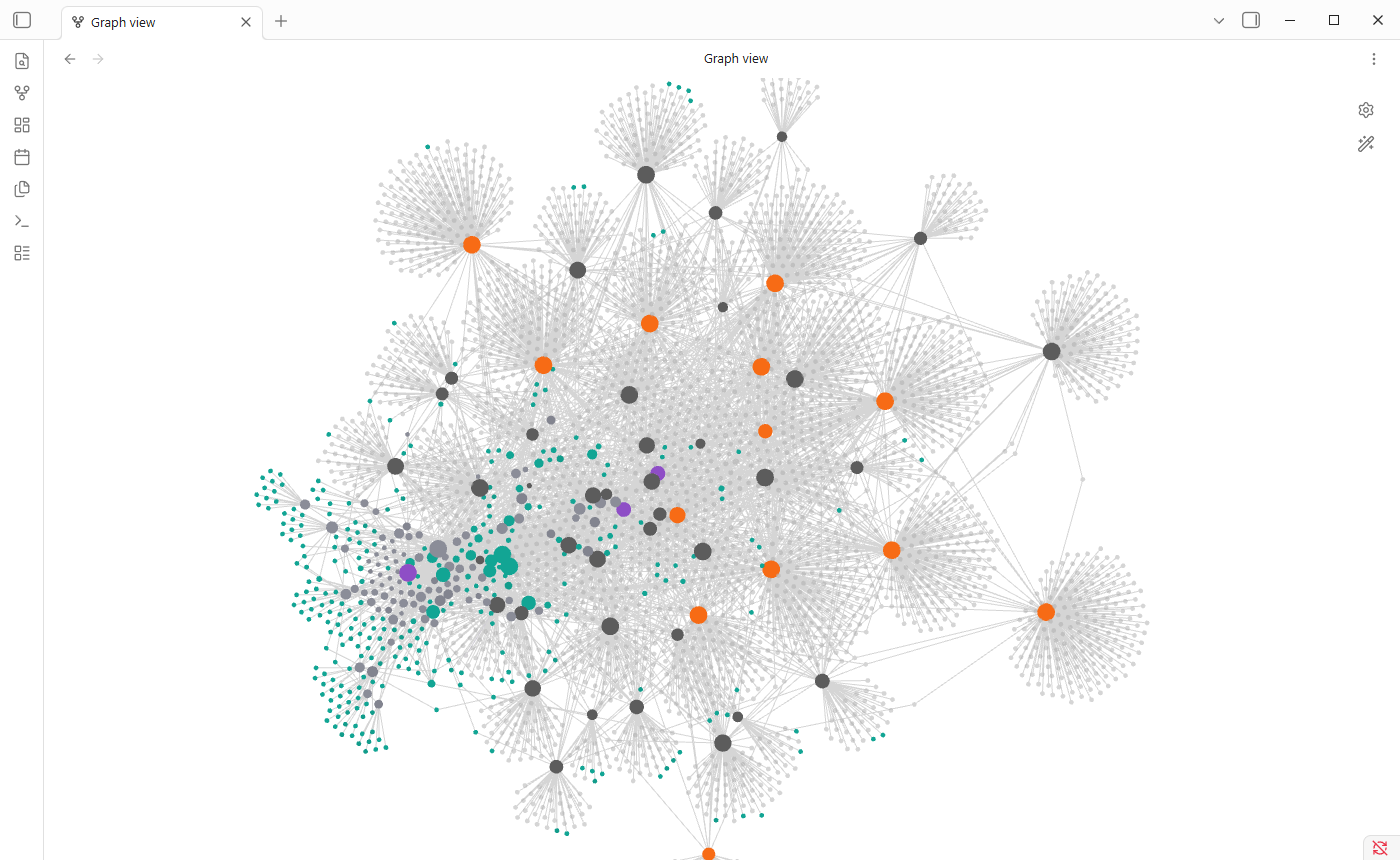
At first the graph is crowded. Each burst of small pale dots is a downloaded paper and the papers it cites that have no note. Switch them off with Existing files only, under Filters in the settings panel, which opens from the gear at the top right. What remains is your study's structure:
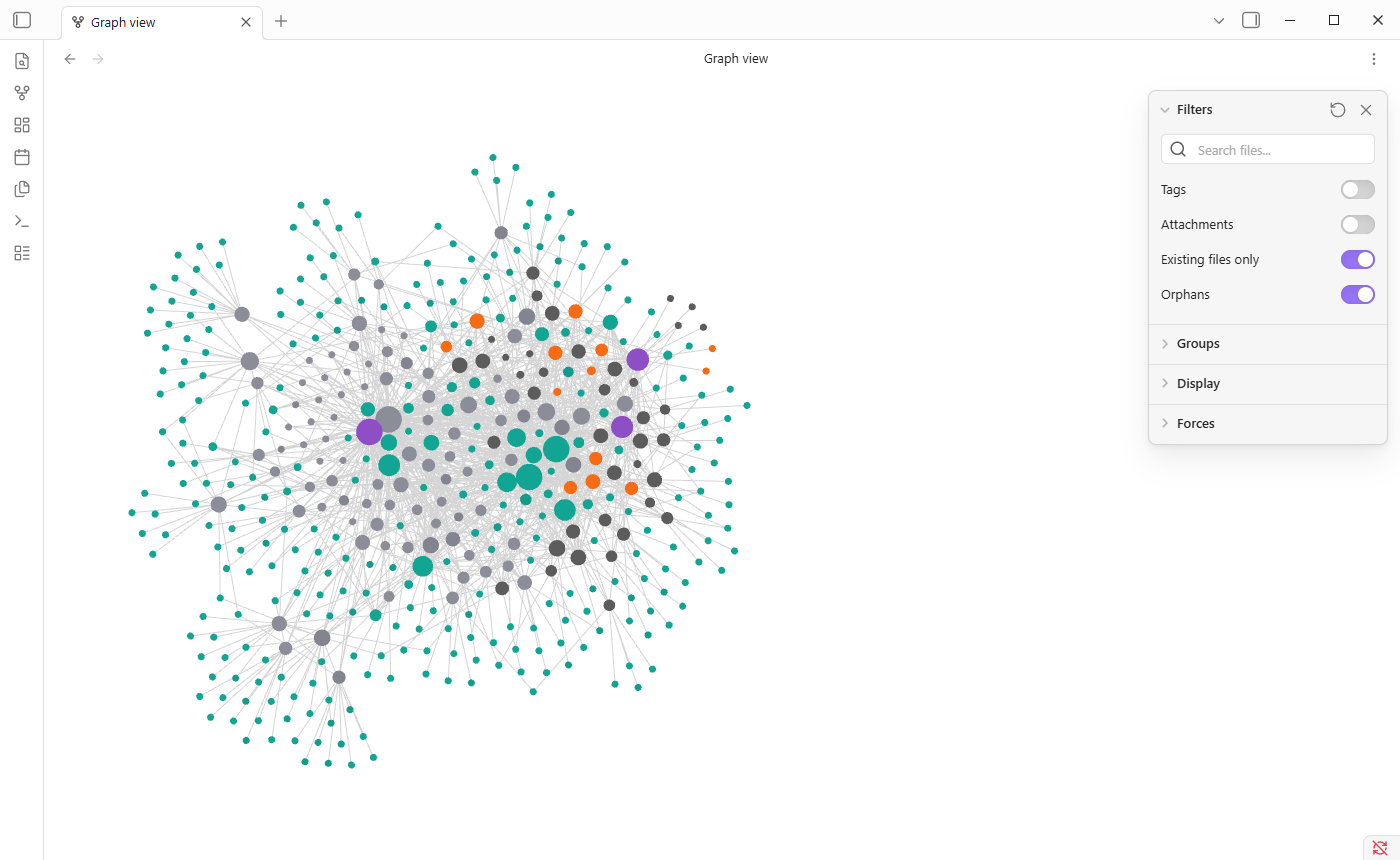
Here the key paper's neighborhood, mostly stubs, forms the cluster on the left, and the papers the searches downloaded, with their reviews, the cluster on the right. Shared MeSH concepts tie the two together.
The dots have colours:
| Colour | Notes |
|---|---|
| Red | Retracted papers |
| Purple | Collections: your searches and neighborhoods |
| Teal | MeSH concepts |
| Light grey | Stub papers |
| Orange | Reviews |
| Dark grey, Obsidian's default | Other downloaded papers |
| Small pale dots | Cited papers without a note |
A paper that matches several rows takes the first, so a retracted review is red. To change the colours, expand Groups in the settings panel.
Filters can also narrow the graph down. Type into its search box:
| Filter | Shows |
|---|---|
path:papers |
Papers only, linked by citation and similarity |
-path:concepts |
Everything except concepts |
tag:#pubmed/review |
Reviews only |
-tag:#pubmed/stub |
Downloaded papers, collections and concepts, without stubs |
Under Display, Arrows shows which paper cites which, and Node size makes well-connected notes bigger. Dragging the Forces sliders spreads a crowded graph out.
What to look for: tight clusters of papers are sub-topics; a concept dot with many lines is a central theme; a paper that sits between two clusters links two lines of research and is worth reading early.
One paper's neighborhood: the local graph
The full graph shows everything. The local graph shows only what links to one note, which is the best way to explore a single paper or concept.
Open a paper note, press Ctrl+P (Cmd+P) to open the command palette, type local graph, and choose Graph view: Open local graph. It opens beside the note and follows you as you move between notes. In its settings, Depth sets how many links away it reaches: 1 shows direct neighbors, 2 their neighbors too. Switch on Existing files only here as well, so that only notes are shown.
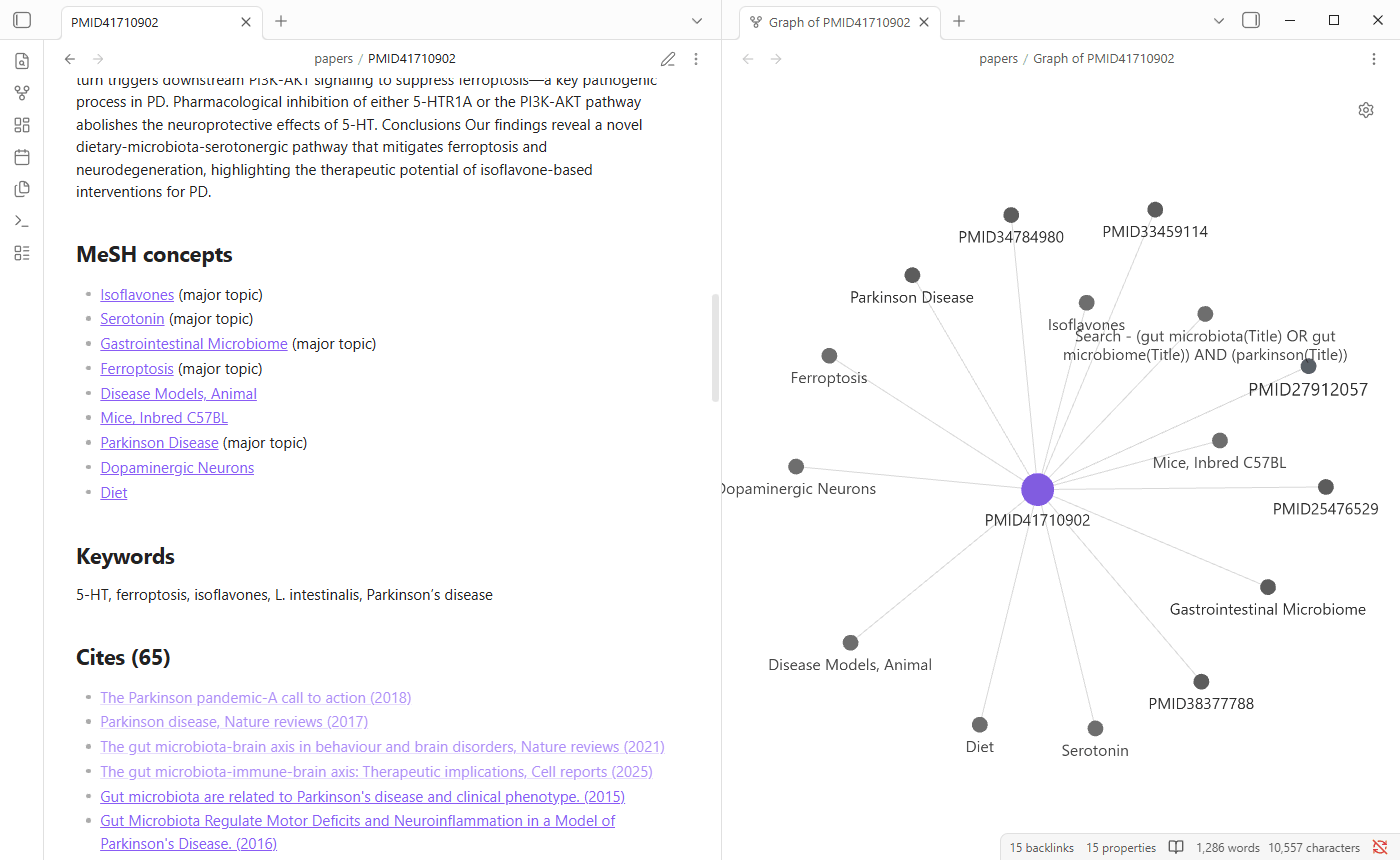
The local graph has its own settings, so it does not use the full graph's colours. Add the same groups under Groups if you want them.
The Backlinks panel in the right sidebar lists every note that links to the open one. On a concept note, that is every paper about the concept; on a paper, every paper that cites it.
A table of all papers
Every knowledge graph has Papers.base, a table made with Obsidian's core Bases plugin. It is embedded at the bottom of the home note, and opens on its own from the file list. Click a column heading to sort, and a note name to open the paper.
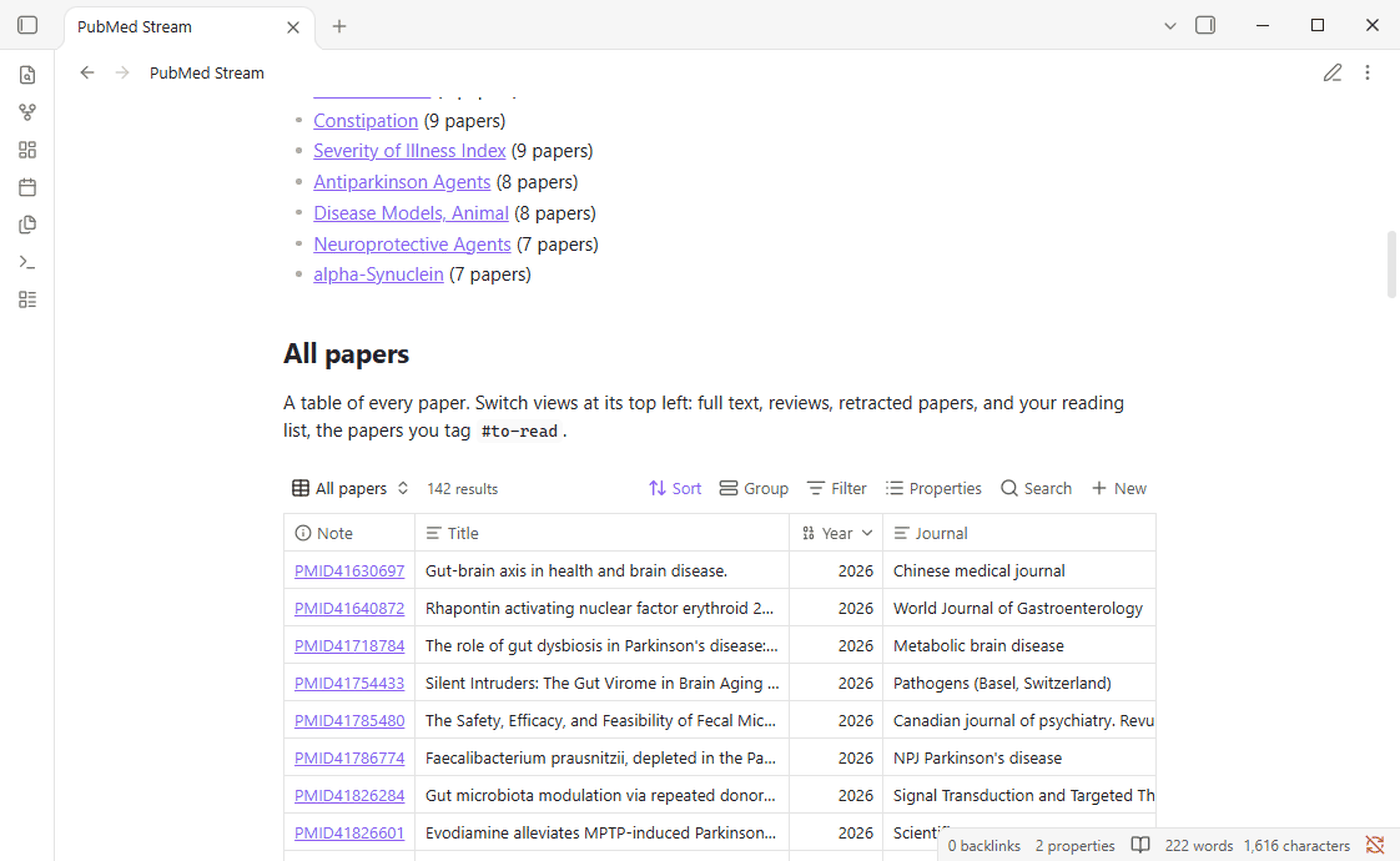
Switch views with the menu at the table's top left:
| View | Shows |
|---|---|
| All papers | Every paper, newest first, with its journal, status and publication type |
| Full text | Papers whose full text was downloaded |
| Reviews | Papers PubMed lists as reviews |
| Retracted | Retracted papers |
| Reading list | Papers you tagged #to-read |
The table is yours to change: add columns, filters or views with the buttons above it, and pubmed-stream never overwrites it. pubmed-stream also tells Obsidian what each property holds, so year sorts as a number, retracted shows as a checkbox, and authors, mesh and keywords are lists. Property types you set yourself are kept.
Search
Press Ctrl+Shift+F (Cmd+Shift+F) to search every note. Plain words search titles, abstracts and your own notes. Each result shows the matching lines; click one to open the note.
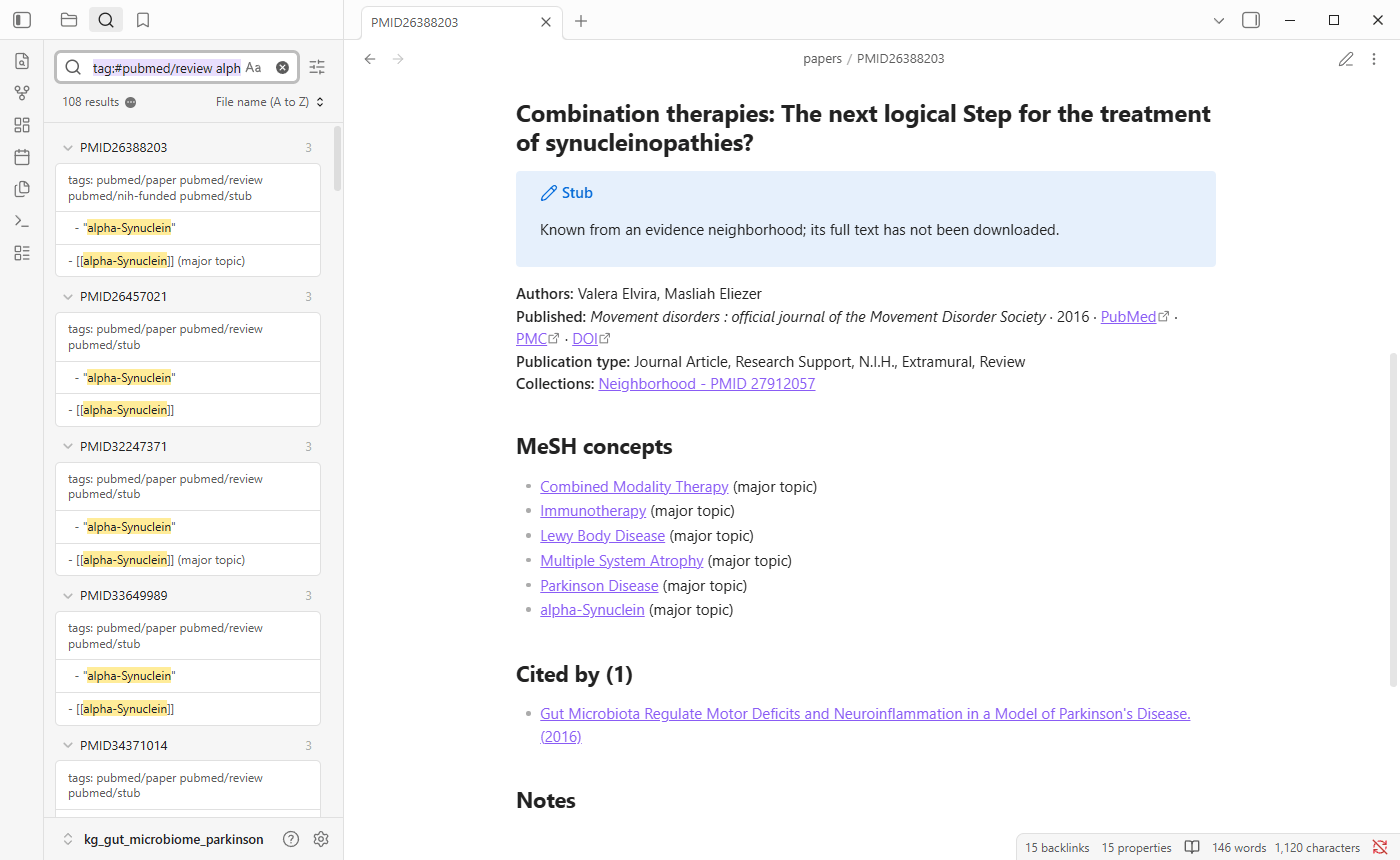
Some useful searches, which can be combined, such as tag:#pubmed/review alpha-synuclein:
| Search | Finds |
|---|---|
butyrate |
Every note that mentions butyrate |
path:papers butyrate |
Papers that mention it |
tag:#pubmed/retracted |
Retracted papers |
tag:#pubmed/review |
Reviews |
tag:#pubmed/nih-funded |
NIH-funded papers |
[year:2024] |
Papers published in 2024 |
[status:full-text] |
Papers whose full text was downloaded |
"Randomized Controlled Trial" |
Papers of that publication type |
For a sortable table of properties, use the papers table.
Write your own notes
The graph is meant to be written in. Each generated note has a block between two lines that start %% pubmed-stream:start and %% pubmed-stream:end. These lines are hidden in reading view. pubmed-stream rewrites only what is inside the block, so:
- Write below the end line. Summaries, critiques, quotes and ideas there are kept when the graph is rebuilt.
- Link as you write. Type
[[and start typing a paper's title, a PubMed ID such asPMID31319564, or a concept such asSarcopenia, and Obsidian suggests the note. Your links appear in the graph view too. - Tag papers for yourself, for example
#to-read,#key-paperor#method, anywhere in the note. - Add your own properties, such as
reading: doneorrating: 4. Use names the tool does not use; it ownstype,title,aliases,pmid,pmcid,doi,year,journal,authors,publication_types,mesh,keywords,status,retracted,urlandtags. Tags and aliases you add are kept. - Create notes of your own, such as a synthesis note or a draft introduction, anywhere in the vault, linking to the papers they discuss.
In editing view, the end line is visible, and everything you write below it is yours:
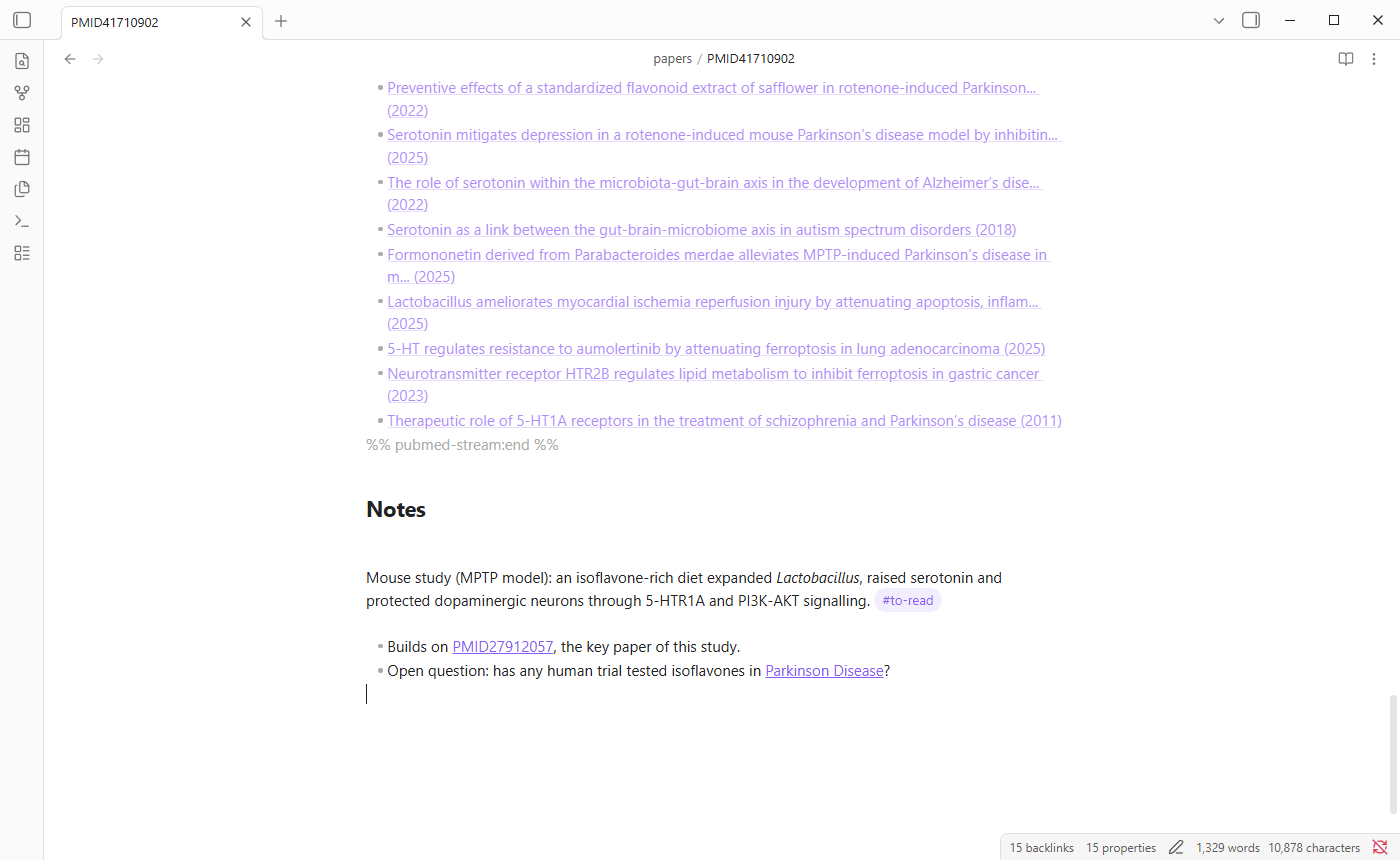
Do not rename or move the generated notes: a rebuild would recreate them under their original names. Edits inside the generated block are overwritten.
Keep the graph current
New papers appear every week. Run the same notebook again, or from the command line:
This reruns the study's searches and key papers, downloads only what is new, and updates the notes. Obsidian shows the changes immediately, and your own writing stays where it was.
Reviews by a local model
pubmed-stream review summarizes chosen abstracts with a local model through Ollama, so nothing leaves your computer; tutorial 7 explains it. With --vault kg_<topic>, the review is saved in the graph's reviews folder, with each summary linked to its paper's note, and listed on the home note:
pubmed-stream review "Does FMT help people with Parkinson's disease?" --id 38686220 41826284 --vault kg_fmt_parkinson
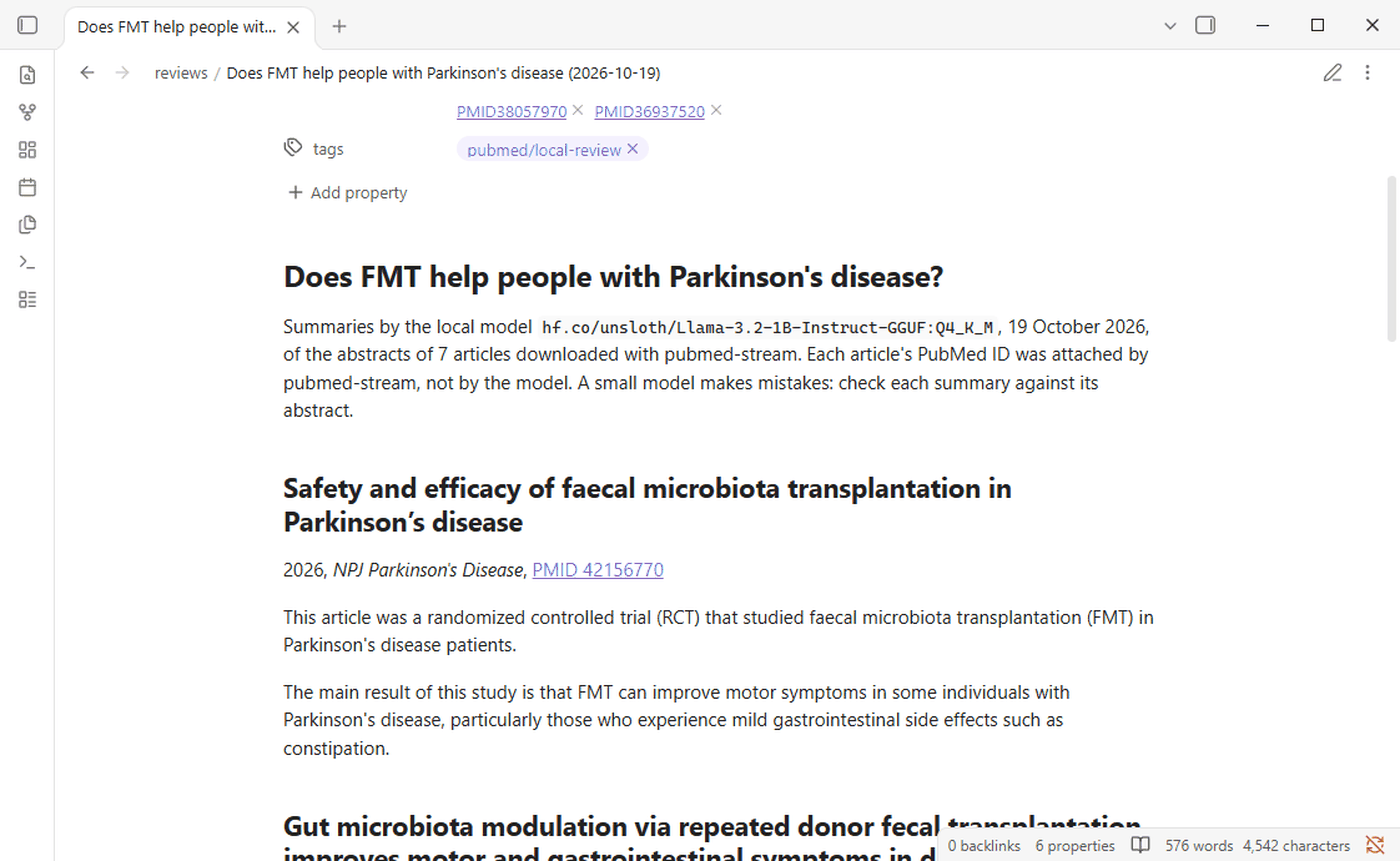
A small model makes mistakes: check each summary against its paper before you rely on it.
From the command line and AI assistants
Obsidian has its own command line interface, which works while Obsidian is running. Switch it on in Settings > General, under Command line interface, and follow the prompt. Then you, or an AI assistant such as Claude Code or Codex, can query an open graph by its folder name:
| Command | Answers |
|---|---|
obsidian vault=kg_fmt_parkinson search query=butyrate path=papers total |
How many papers mention butyrate |
obsidian vault=kg_fmt_parkinson search:context query=GUT-PARFECT path=papers |
The lines that mention it |
obsidian vault=kg_fmt_parkinson backlinks file=PMID38686220 |
The notes that link to a paper |
obsidian vault=kg_fmt_parkinson base:query path=Papers.base view="Reading list" format=paths |
The papers you tagged #to-read |
obsidian vault=kg_fmt_parkinson unresolved total |
How many cited papers have no note |
The instructions that pubmed-stream init and the pubmed-stream plugin give AI assistants include these commands, so an assistant can read your reading list or check which papers cite a trial.